How to record a meeting on your Mac and keep it
Record the call window with system audio and your mic, ask everyone first, and transcribe it on your Mac. Plus what you may and may not record or share.
To record a meeting on a Mac and keep it, record the call window with two audio sources on: system audio for everyone else's voices and your microphone for yours. Ask everyone before you press record. Afterwards, transcribe it on your Mac so you can search it in six months, when you actually need it.
The rest of this page is the setup that gets you a recording worth keeping, plus the part that is your responsibility rather than the app's.
What is worth keeping
Not every call. The ones people come back to:
- the client kickoff where the scope was agreed out loud;
- an onboarding session or a walkthrough of a system only one person understands;
- a talk, lecture or webinar you gave, or one you have permission to keep;
- a demo to an investor or a customer, to watch your own pitch back;
- a hard conversation where you want the exact words later, with the other side's agreement.
A recording of your own presentation is the easiest case, because the only person who has to agree is you.
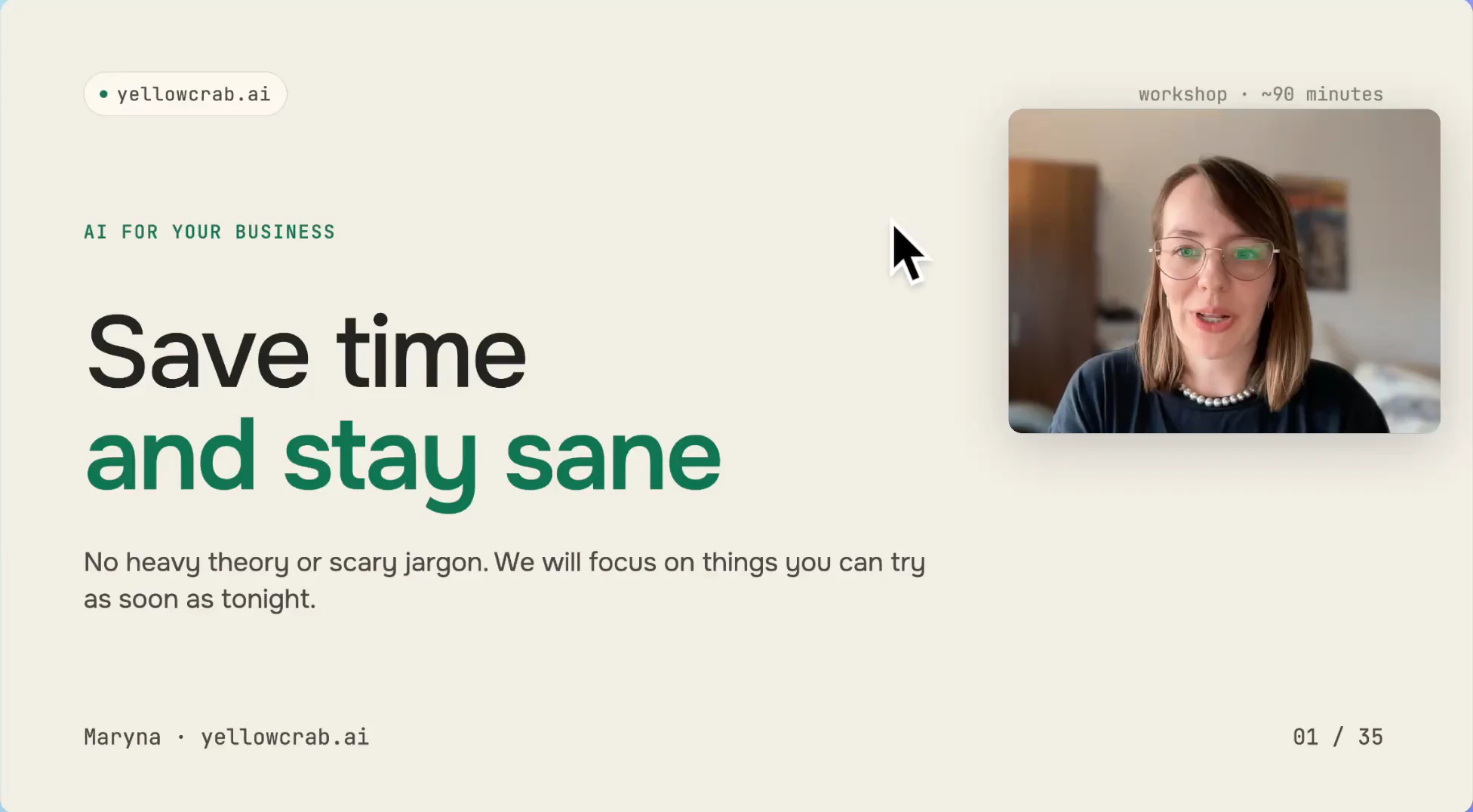
Before the call
Ask, and ask on the recording. Start with "Is everyone fine with me recording this so I can go back to it?" and wait for an answer from each person. Then the agreement is in the file too.
Wear headphones. On speakers, your microphone picks up the other voices as well, so they end up on two tracks a fraction of a second apart and sound hollow. Headphones keep your mic for you and system audio for everyone else.
Turn on Do Not Disturb. A notification banner that slides in over the call is recorded like everything else, including the preview text of the message.
Check free space. A full Retina display can take a gigabyte every two minutes, so an hour wants around 30 GB. Recording one window instead of the whole display cuts that by four or five times. Why the files get that big.
Setting it up in Screen Records
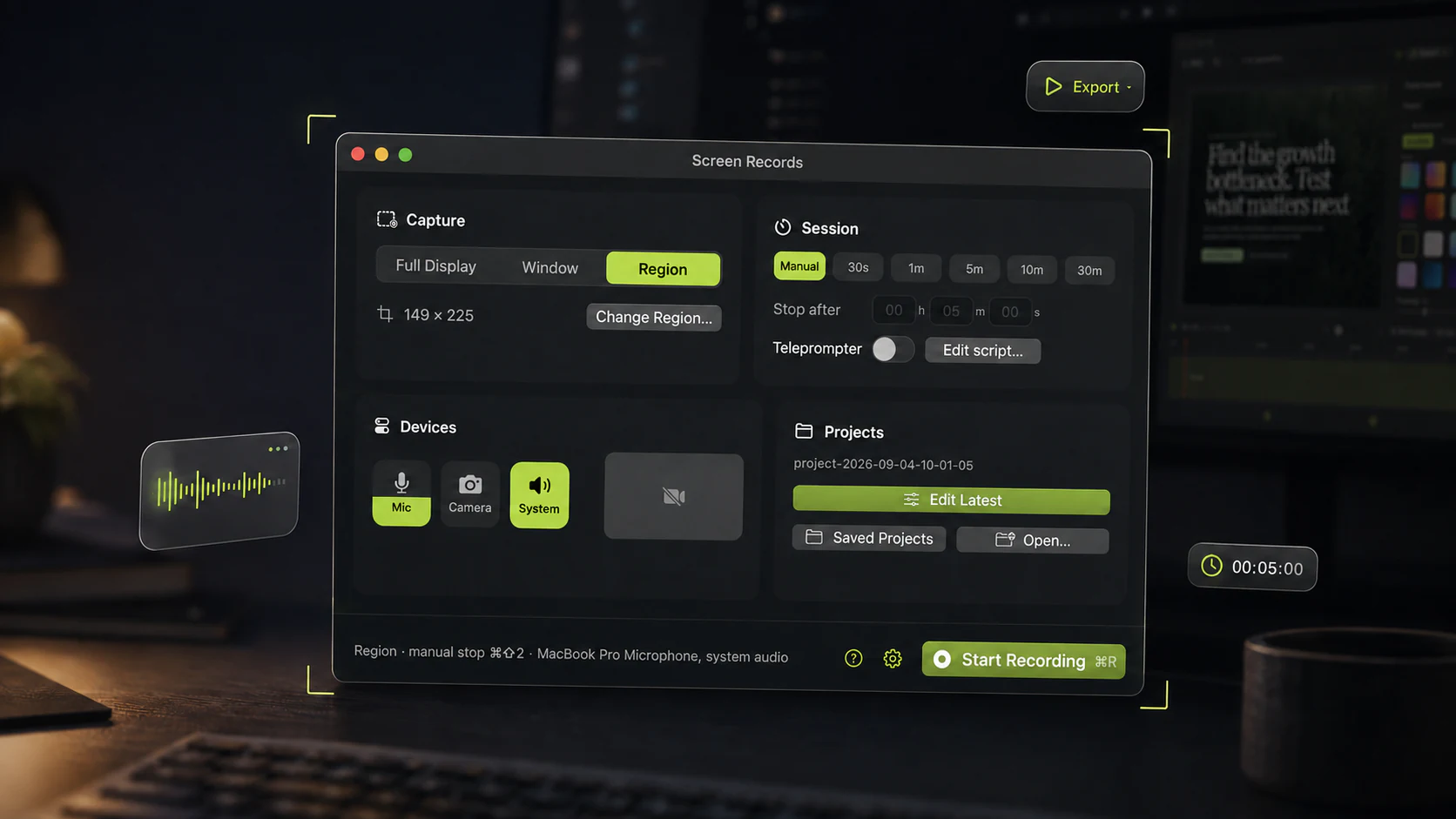
- Capture: Window, and pick the Zoom, Google Meet or Teams window. If someone will share their screen, record the display instead, because call apps can move a shared screen into a different window.
- System audio on. That is the other participants. Without it you get a silent video of people talking, which is what the built-in macOS recorders give you.
- Microphone on, set to the mic you speak into. It is recorded on its own track, so you can turn yourself down later without losing anyone else.
- Camera off. The call already shows your face, and a second copy in a bubble covers part of the meeting.
- Session: Manual, unless you want it to stop by itself at 30 minutes.
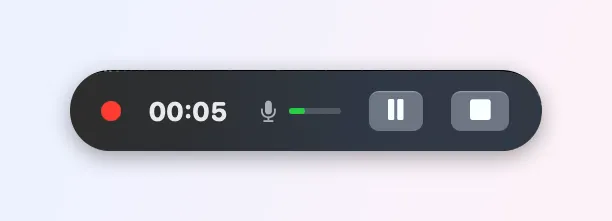
When the conversation goes somewhere that should not be kept, press Pause. The paused time never reaches the file, which is better than remembering to cut it later.
Why not the call app's own recording
Zoom, Meet and Teams all record, and when they can, use them. Their recording tells every participant it is on, which takes care of half of the consent question for you.
The cases where a screen recorder makes more sense: you are not the host and the host has recording switched off for guests, the plan you are on does not include recording, or the call app would store the file in the cloud and you need it to stay on your machine. A screen recorder does not announce itself to anyone. That is why the next section exists.
After the call
Open the recording in the editor and cut what nobody needs: the five minutes of waiting for people to join, the side conversation, anything said by someone who later asked not to be kept.
Then generate captions. They are transcribed on your Mac by a Whisper model, and no audio is uploaded anywhere, which matters for a call about clients or unreleased work. A wrong name gets fixed by typing over it.
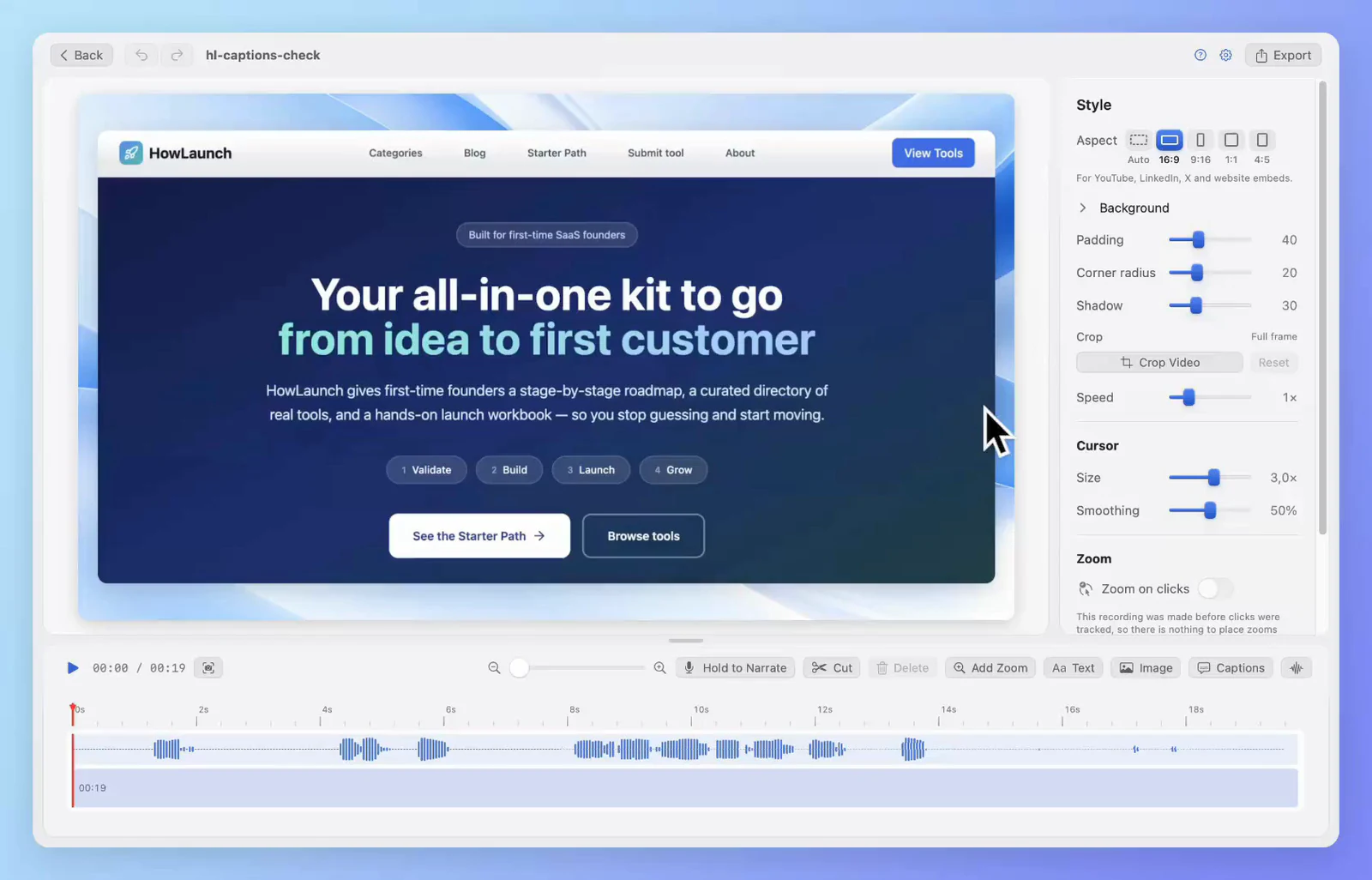
With a license, the transcript exports as plain text. Paste it into your notes, or hand it to your AI assistant and ask for the decisions and the action items. If you recorded a talk you gave, the presentation guide covers turning it into a video worth publishing.
Your recording, your responsibility
Screen Records is a tool. It does not ask the people on the call for permission, it does not tell them they are being recorded, and it cannot know what you are allowed to keep. All of that is on you.
Get approval from everyone first. Recording laws differ by country and by state, and many places require every participant to agree, not just you. If anyone says no, do not record. If someone joins halfway, ask again.
Do not record what you are not supposed to have. A meeting under NDA, a client's data on a shared screen, patient or student details, an internal call your company's policy says stays unrecorded. Being able to see it does not mean you are allowed to keep a copy.
Do not share what was not meant to be shared. Agreement to be recorded is not agreement to be posted. Keep the file to the people who were in the meeting unless everyone in it says otherwise, and cut out anyone who did not agree before it goes further.
Delete it when it has done its job. A recording you no longer need is a risk you are keeping for no reason.
This is not legal advice. If the recording matters, for work, a dispute or anything regulated, check the rules where you and the other participants are before you press record.
Share this post
Keep reading
- GuideWhy your Mac screen recording is laggy, silent, or 4 GBSix things that go wrong with Mac screen recordings, five with the same cause: where files save, why they stutter, and the one setting that fixes most of it.
- GuideHow to add zoom to a screen recordingWhen a zoom helps, the level and hold time that work, and how to place zooms after recording on a Mac, in Screen Records, iMovie or a pro editor.
- ComparisonStop paying monthly for every step of a screen recordingRecorder, editor, captions, silence cutting and GIF export in one Mac app, paid once. What the usual subscriptions cost and what this does not replace.