Mac screen recordings that keep your screen's real colors
Version 0.1.9 stops brand colors coming out grayer, makes the preview match the screen, lets you pinch to zoom the preview, and installs updates on quit.
Screen Records 0.1.9 records the colors your screen actually shows. Brand blues, greens and reds used to come out a shade grayer, and the editor preview showed recordings lighter than they were. Both are fixed, from the moment you record to the file you export.
The same version lets you pinch the editor preview to look at small details, and it can install updates on its own the next time you quit.
Why recordings looked washed out
Your Mac's display works in Display P3, a wider range of colors than sRGB, the standard that video players and browsers use. Until 0.1.9, Screen Records captured the screen in the display's P3 numbers and then treated them as sRGB numbers. Same digits, smaller range: every saturated color landed closer to gray.
Greys and black text were not affected, because they have the same numbers in both. That is why the problem hid well in code editors and dark mode, and showed up the moment a logo or a colored button was on screen.
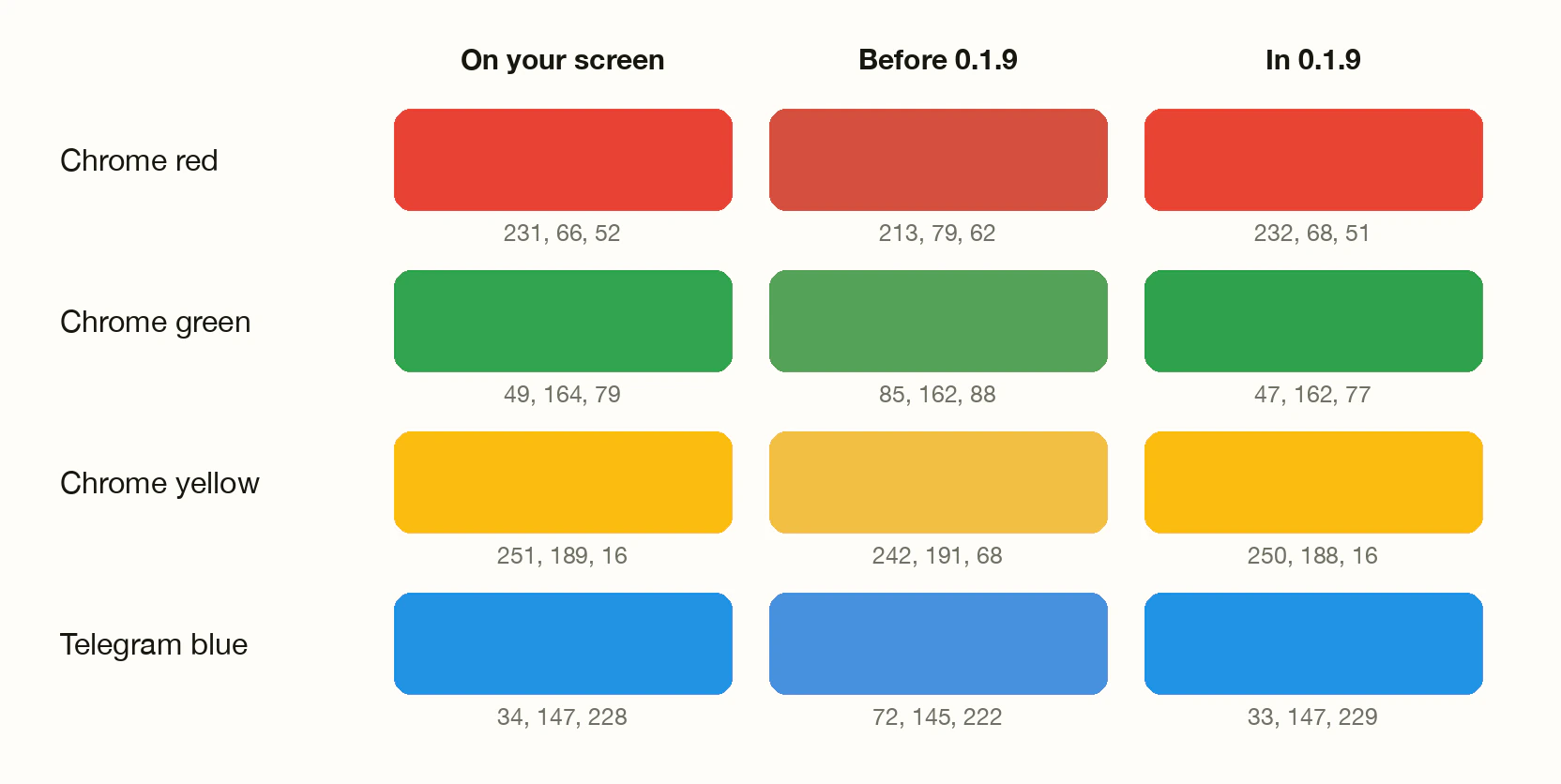
The numbers under each swatch are the red, green and blue values from 0 to 255. Chrome's red went from 231, 66, 52 on screen to 213, 79, 62 in the recording. In 0.1.9 it records as 232, 68, 51.
Two smaller problems sat on top of that one. Video files carry a label that tells players how to show them, and the editor read the recording's label in a way that lifted every color, so the preview looked lighter than the screen. Text, images and backgrounds you added went the other way and came out darker in the export when it played in Chrome.
What 0.1.9 changes
- Recording captures in sRGB, so saturated colors keep their strength.
- The editor preview shows the recording exactly as it looked on screen, paused or playing.
- Exports play with the screen's colors in Chrome.
- Text, images and backgrounds you add keep their colors in the exported video.
- GIFs and saved thumbnails keep the recording's colors instead of looking faded.
QuickTime Player still shows exported videos a little lighter than Chrome does. It shows Apple's own screen recordings the same way.
How we checked
We recorded the Dock and compared each icon in the recording against the icon file inside the app. Every color landed within 3 steps out of 255 of the original, and the editor preview, zoomed in or not, stayed within a few steps more, which is scaling blending neighboring pixels. The app's tests now render frames through the same path as the preview and the export and check these colors on every run, so a later change cannot dull them quietly.
Your older recordings
The preview, saved frames and exports of every project use the new color handling as soon as you update. A recording made before 0.1.9 still holds the grayer capture, though, and no setting can bring back color it never stored. If a brand color matters, record that take again.
Zoom into the preview
Pinch on your trackpad over the video in the editor to zoom in, up to 800%. Scroll with two fingers to move around. A badge in the corner shows how far in you are, and clicking it fits the whole video again.
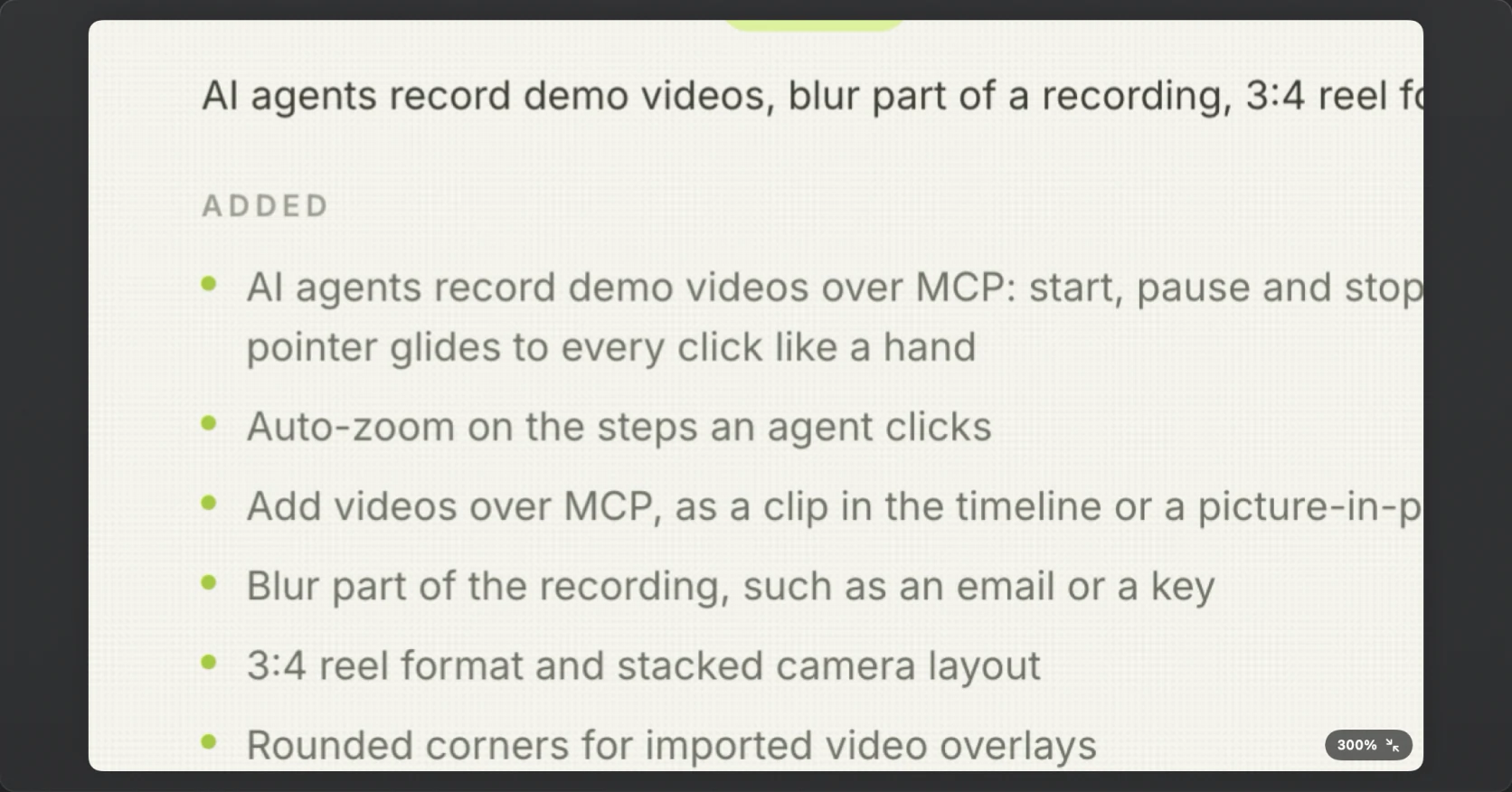
This zoom is for your eyes only. It does not change the project or the exported video. To zoom inside the finished video, use Add Zoom on the timeline, which the zoom guide covers.
It helps when the detail is small:
- reading a terminal line or a typo before you cut around it;
- checking that a blur covers all of an email address, not most of it;
- placing a zoom's focus point or a text label to the pixel;
- spotting a notification that slipped into the take.
Handles keep their normal size while you are zoomed in, so you can still drag the camera bubble, text and images precisely.
A few more ways in:
- Two-finger double tap zooms to 200% where you tap, and again goes back to fit.
- Command and scroll zooms with a mouse.
The preview sharpens as you zoom, up to the full resolution of your recording. A Retina recording holds about twice the detail of the fitted preview, so the first 200% shows real new detail. Past the recording's own resolution, you see its pixels larger.
Updates that install themselves
Settings now has Install updates automatically under Check for updates automatically. With both on, Screen Records downloads a new version in the background and installs it the next time you quit. It never installs in the middle of a recording or an export.
The update window has the same choice as a checkbox, and ticking it there turns on the Settings switch too.
Checks run when the app opens and once a day. Turning them off now asks first, since you would then miss fixes until you check yourself. While they are off, Settings shows a Check Now button, and Check for Updates… in the app menu (⇧⌘U) works as before.
Privacy policy update
When it opens, the app now also reports its version and both update settings, next to the recording count it already sent. The privacy policy says so, and it now also mentions that recording count, which it left out before. Update checks themselves go to GitHub with no identifier attached.
Share this post
Keep reading
- Product updateYou could vibecode a screen recorder. Or record todayAn AI agent gets you a red record button in an afternoon. The rest took us two months. Where that time goes, and how to record something tonight instead.
- Product updateScreen Records is now free, with no recording limitVersion 0.1.7 drops the three-recording trial. Record and export as much as you like; free videos carry a small corner badge that a one-time license removes.
- GuideLet an AI agent record your demo, then edit and export itClaude or another agent clicks through your app while Screen Records records, marks each step, then cuts the waiting, adds zooms and labels, and exports.