Let an AI agent record your demo, then edit and export it
Claude or another agent clicks through your app while Screen Records records, marks each step, then cuts the waiting, adds zooms and labels, and exports.
Since version 0.1.8, an AI agent can make a demo video in Screen Records from the first frame to the exported MP4. It starts the recording, clicks through your app, names each step as it goes, stops, cuts the dead time, adds zooms and labels, and exports. You write one prompt and watch.
Until now the MCP server could only edit a recording you had made yourself. Now it can make the recording too.
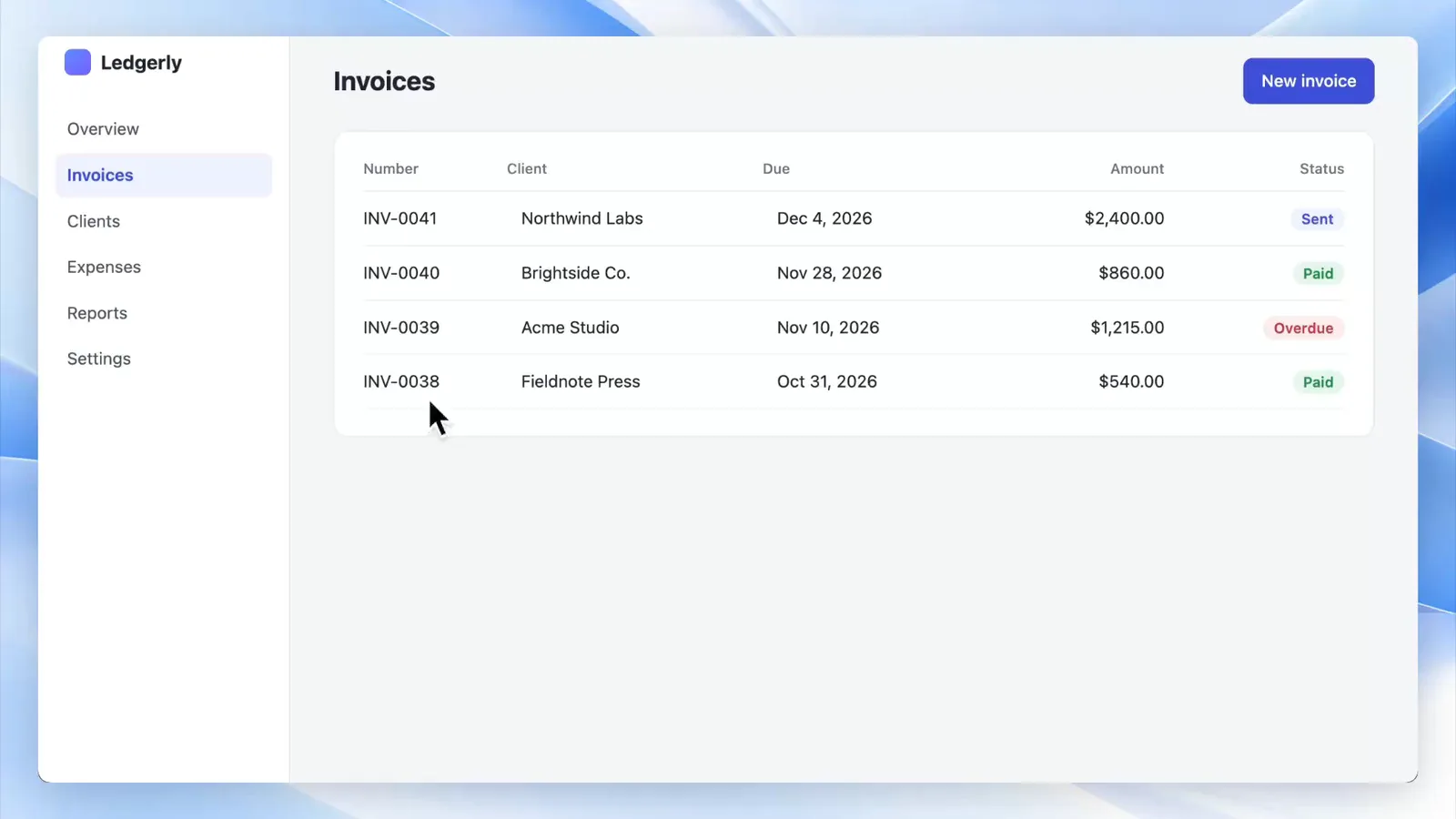
The video above came from one line to Claude Code: "Record a demo with Screen Records of that website." The agent did the whole process from there. It opened Screen Records, opened the site in a browser, started the recording, and clicked through creating an invoice, marking each step as it went. Then it stopped, cut the 66-second take down to 20 seconds, added the zooms and the step labels, and exported. The one thing I changed by hand was the background.
What you need
A Screen Records license. Recording and editing over MCP both come with it. The free version can't use the AI tools.
An agent that can work your screen. Screen Records records and edits. It does not click around your apps for the agent. That comes from the agent's own tools, such as computer use in Claude or a browser driver like Playwright for a web app. AppleScript works for many Mac apps.
The switch and the setup. Turn on "Let AI tools edit projects" in Settings → AI and connect your client, as described in setup. It is the same switch and the same token as for editing.
One catch with the clicks. If the agent posts mouse events itself, instead of using a computer use tool, the app it runs in needs Accessibility permission. Without it macOS drops the clicks without a word, and the video shows the pointer arriving and nothing happening.
The prompt
The video at the top came from this:
Record a demo with Screen Records of that website.
"That website" was a sample billing app we keep for demos. The agent picked the steps, the cuts, the zooms and the labels on its own. If you want to decide those yourself, spell them out:
Record a demo of creating an invoice in the billing app open in Chrome. Record only that window. Mark every step as you do it. Then cut the waiting between steps, zoom in on each click, put each step's name on screen as a label, use a light background, and export a 1080p MP4.
How the take goes
It starts the recording. It can record a whole display, which is the default, one window by its app name or title, or a region of the screen. Your microphone, camera and the Mac's sound stay off unless you ask for them. The take goes through the same path as your own record button: the floating controls show and your stop shortcut works, so you can stop it yourself at any point. On your next recording your own microphone and camera settings are back.
It marks each step as it does it. Before a click, the agent names the step ("Click New invoice") and says where it is about to click. Screen Records then moves your real pointer there along a curve, in 0.3 to 0.9 seconds depending on the distance, so the video shows a hand moving the mouse instead of a cursor jumping across the screen. It also writes the click into the cursor track. The agent's clicks are synthetic, so without that mark the editor would not know a click happened, and zooms on clicks would have nothing to aim at.
It pauses for the setup. When a page has to load or a dialog has to close first, the agent can pause, get the screen ready and resume. The paused time is left out of the video, with no gap at the join.
It stops. The take opens in the editor, and the agent gets the project back with every step at its place on the timeline.
Cutting the waiting
An agent at a screen is slow in a way a person is not. Each step is a round trip: it looks at the screen, decides, marks the step, then clicks. Steps land 4 to 7 seconds apart, and the pointer moves for under a second of that. In our first live take, four steps in Calculator, the pointer moved for about 3 of 27.6 seconds. The rest was a still screen.
So the first edit is a cut. One call keeps about a second before each step and 0.8 seconds after, and removes everything else. The steps move with the cuts, and the pointer carries on across each join from where it stopped. If a click opens something slow, ask it to keep more time after that step, or the screen's answer to the click gets cut too.
Then the edit
From here it is the same editing the AI does on a recording you made yourself.
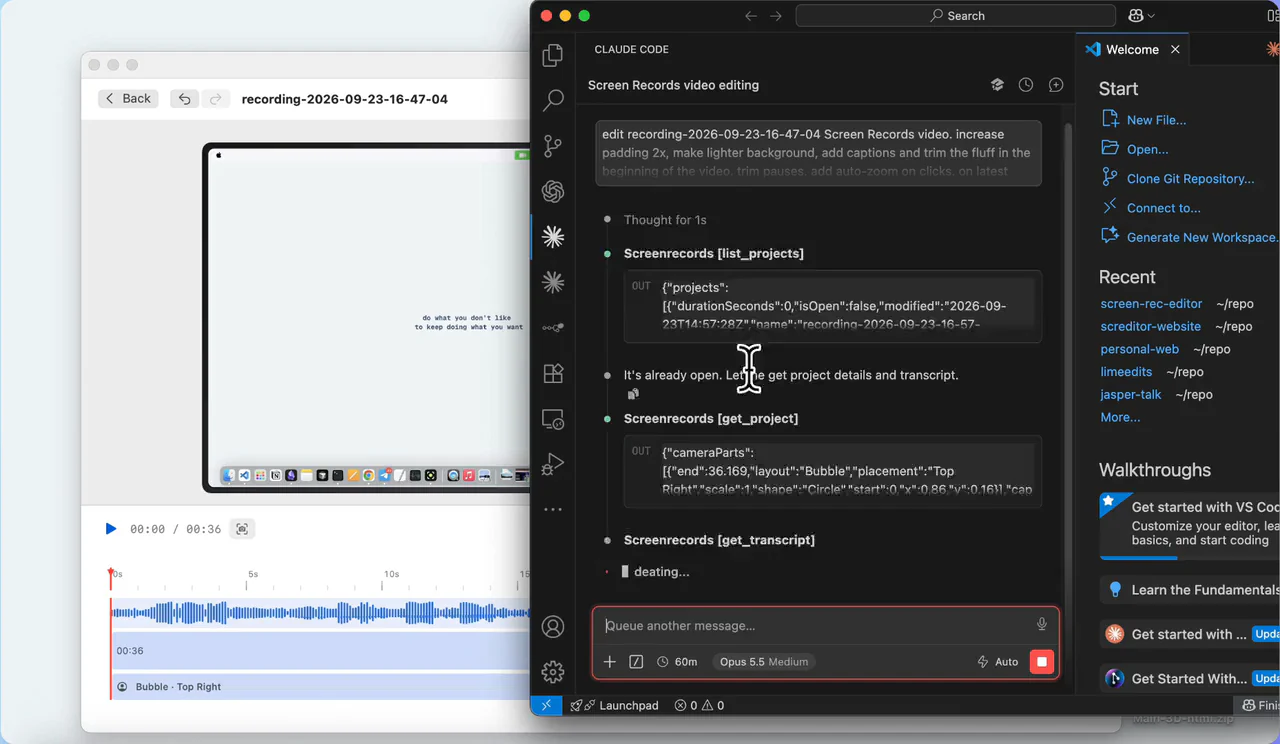
Zooms. After the cut, the clicks sit close together. Automatic zoom treats clicks less than 2.5 seconds apart as one moment, and when that group spreads wider than one zoom can frame, it places no zoom at all. On a tight take the agent places a zoom on each step instead.
Labels. Each step already has a name, so the agent can put that name on screen as a text label for the length of the step. Labels sit on the finished frame, so zooms don't move them.
Style. Background, padding, corner radius and aspect ratio, the same settings as the style panel.
A last look, then export. It can pull frames from the finished edit to check what is on screen, then export an MP4, a GIF, the audio or a captions file into your export folder.
Every change is one step on the undo stack, and the recording itself is never modified. If a zoom lands on the wrong button, press ⌘Z or tell the agent which step to move it to.
What it doesn't do yet
Your voice. An agent's take has no microphone unless you ask, and the agent can't narrate for you. For a voiced demo, record the narration yourself over the edited video with Narrate in the editor.
Steps on the timeline. The steps are something only the agent sees. The editor's timeline doesn't draw them yet.
Logins and fiddly controls. A 2FA code, a CAPTCHA, a drag-and-drop or a custom slider can stop an agent. Log in before the take, and do the awkward step yourself while it waits.
What the agent sees
An agent working your screen sees your screen. Computer use sends screenshots to the AI provider, under your account with them. On the Screen Records side, the AI reads the transcript and any frames it asks for. The video file and the project stay on your Mac.
Before a take, close anything you would not paste into that chat, like your inbox or a dashboard with customer data. Recording one window instead of the whole display keeps the rest of your screen out of the video as well.
Share this post
Keep reading
- GuidePut text, images and video over your screen recordingAdd titles, logos, labels and picture-in-picture video in the editor, or ask Claude or ChatGPT to place them over MCP. They stay put through zooms.
- GuideA teleprompter for screen recording on your MacPaste your script, place the panel under your camera, and it scrolls at your reading pace once you hit record. It never appears in the video.
- Product updateYou could vibecode a screen recorder. Or record todayAn AI agent gets you a red record button in an afternoon. The rest took us two months. Where that time goes, and how to record something tonight instead.