A teleprompter for screen recording on your Mac
Paste your script, place the panel under your camera, and it scrolls at your reading pace once you hit record. It never appears in the video.
Screen Records has a teleprompter built into the recorder. You paste your script, a small panel floats over the app you are demoing, the text scrolls at your reading pace once you press record, and the panel never shows up in the video. There is no second app to run and no second window to hide before the take.
It is in the free version. Here is how to set it up so the take sounds spoken rather than read.
Turn it on
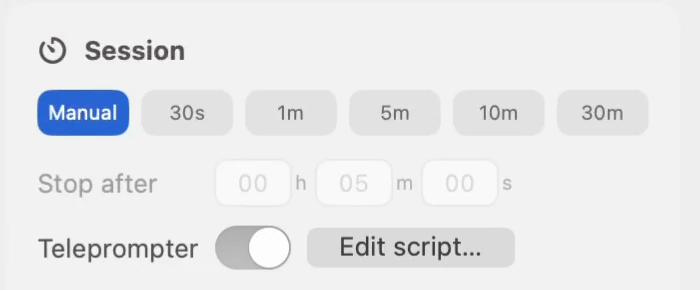
In the capture window, under Session, switch on Teleprompter and click Edit script…. Paste the script and save. It holds up to 20,000 characters, which is over twenty minutes of talking at a normal pace.
The panel appears straight away, while you are still setting up. That is on purpose: you place it before the take, not while you are talking. Drag it by its title bar, resize it from any edge, and it stays where you put it for the next take and the next time you open the app.
Where to put it
Right under the camera if your face is in the video. Your eyes stay close to the lens, and viewers read that as eye contact. A panel in the far corner of the screen makes you look like you are reading the side of the room.
Next to the thing you are clicking if the camera is off. Your eyes travel less between the script and the demo, so the pauses get shorter.
If the panel has to sit over part of the app, use the dim button in its title bar. The card turns more transparent and you can see what is underneath while still reading.
Set the pace, not a speed
The pace is in words per minute, from 40 to 400 in steps of 10, and it starts at 140. Set it to how fast you actually read this script out loud, not to a number that sounds right. A script full of product names and numbers reads slower than a story.
The pace holds when you change things. Make the text bigger (it goes from 11 to 36 points) or make the panel narrower, and the scroll adjusts so the same number of words still passes each minute.
What happens when you record
Press Start Recording and the script jumps back to line one and starts scrolling. You do not have to start it by hand at the exact moment you are trying to start talking.
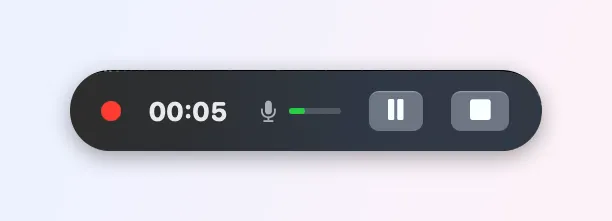
Pause the recording and the script pauses with it. Resume, and it carries on from where you stopped. If you lose your place, the panel's own controls pause the scroll or send it back to the top without touching the recording.
The panel never takes keyboard focus. Typing during the demo goes to the app you are demoing, and clicking the panel to move it does not pull Screen Records to the front.
For a second take, press record again. The script is still there and starts from the top.
It stays out of the recording
The panel is excluded from the capture the same way the recording controls are, so it is not in your video even when you record the full display. You will not find a stray paragraph of your script in frame 400.
Live calls are different. If you share your whole screen in Zoom, Meet or Teams, the call app does its own capture, and on macOS 15 and later it can pick the panel up. Share one window instead of the whole screen and the script stays yours. Run a test call once before a meeting that matters.
Write it to be said
A script written for reading sounds stiff out loud. Some habits that help:
- Short sentences. One idea per line, so the line you are reading is the sentence you are saying.
- Cues for the clicks. Write
[click Export]or[open settings]on its own line. You will know where the pause goes, and you will not talk past the moment on screen. - Blank lines where you breathe. They scroll past as space, and space is where you take a breath.
- Read it aloud once before recording. Anything you trip over, rewrite in the words you used when you tripped.
To see how long a script runs before you open the app, paste it into the free script timer and teleprompter. It leaves the cues in brackets out of the count and tells you whether the script fits in 60 seconds at your pace.
If one line still comes out wrong, you do not need another take. Record that sentence again in the editor with Hold to Narrate, over the same stretch of screen. The product demo checklist and the guide to recording a presentation as a video cover the rest of the edit.
Share this post
Keep reading
- GuideHow to record a meeting on your Mac and keep itRecord the call window with system audio and your mic, ask everyone first, and transcribe it on your Mac. Plus what you may and may not record or share.
- GuideWhy your Mac screen recording is laggy, silent, or 4 GBSix things that go wrong with Mac screen recordings, five with the same cause: where files save, why they stutter, and the one setting that fixes most of it.
- ComparisonStop paying monthly for every step of a screen recordingRecorder, editor, captions, silence cutting and GIF export in one Mac app, paid once. What the usual subscriptions cost and what this does not replace.