Put text, images and video over your screen recording
Add titles, logos, labels and picture-in-picture video in the editor, or ask Claude or ChatGPT to place them over MCP. They stay put through zooms.
Screen Records can put text, images and other videos on top of your recording, right in the editor. A title on the first frame, your logo in a corner, a label over the button you are about to click, a phone recording playing next to the desktop app. You can place them by hand, or ask Claude or ChatGPT to place them for you over MCP.
Add one by hand
The editor's toolbar has a Text button, an Image button and a Video menu. Each one adds its item at the playhead. In the Video menu, Add Over the Video… is the picture-in-picture one. Insert as Clip at Playhead… puts the file into the timeline itself, between parts of your recording, which is a different job.
Every overlay shows up in two places. In the preview you drag it where you want it and pull a corner to make it bigger or smaller. In the timeline it is a bar in the bottom lane: drag the bar to move it in time, drag its right end to change how long it stays. Overlays that overlap stack in rows, so a title and a logo can share the same seconds.
Text
New text starts white and bold on a dark rounded box, at 64 points. The inspector changes the size (from 12 to 400 points), the color, bold, and the box behind it. Switch the box off and the text gets a soft shadow instead, so it still reads over a busy screen.
Size is measured against a 1080-pixel-tall frame. A label that fits in 1080p takes up the same share of the frame in a 720p export or a 4K one.
The next text you add starts with the look of the last one you styled, in this project and the next one. Style the first label, and the other six in the video match it without any copying.
Images
PNG, JPEG and HEIC all work, as does anything else your Mac opens as a picture. The image is copied into the project, so moving or deleting the original later does not break the video. Its size is a share of the frame's width, and the next image you add starts at the same size. That helps with a logo you put in every video: drop it in and it is already the right size.
A video over the video
A video overlay plays from its first frame, with its own sound mixed into yours. If you only want the picture, switch on Mute its sound in the inspector. It shows for as long as you stretch its bar, up to the length of its own footage.
Some uses that work well:
- A phone screen recording next to the web app, when the demo covers both.
- The finished result in a corner while you build it, so viewers know where it is going.
- A short clip from a customer call, played over the feature they asked for.
- A before and after, with the old version small in the corner.
They stay put when you zoom
Overlays sit on the whole frame, not on the recording. A zoom, a crop or a change of padding moves the recording underneath and leaves your label where you put it. Overlays are drawn above the camera bubble too, so a title is never hidden behind your face.
Cuts work the other way, on purpose. Cut 5 seconds out before a label and the label moves 5 seconds earlier, staying with the moment it was about. Removing pauses does the same thing.
Each overlay fades in and out over 0.2 seconds. One that starts at 0:00 skips the fade in, so a title is already there on the first frame, and on a thumbnail taken from it.
Let Claude or ChatGPT place them
Screen Records has an MCP server built in, and overlays are part of it. Claude, ChatGPT, Codex or Cursor can add text, images and videos with the same controls you have: when each one starts, how long it stays, where it sits, its size and look. A prompt like this is enough:
Open my latest Screen Records project. Add the title "Invoices in 2 clicks" for the first 3 seconds. Put ~/Desktop/logo.png in the top right corner for the whole video, small. When I say "export", add a short label above the Export button. Play ~/Desktop/phone.mov muted in the bottom left while I talk about the mobile app.
To do that, the AI reads the transcript to find when you say "export" and when the mobile app comes up, and pulls frames from the video to see where the Export button is on screen. Then it adds the overlays with their times and positions, and looks at the frames again to check that nothing covers what the viewer needs to see. Each batch it adds is one step on the undo stack, so ⌘Z takes it back. You can watch every overlay land in the editor as it goes, and drag one a few pixels if it is not quite where you would put it.
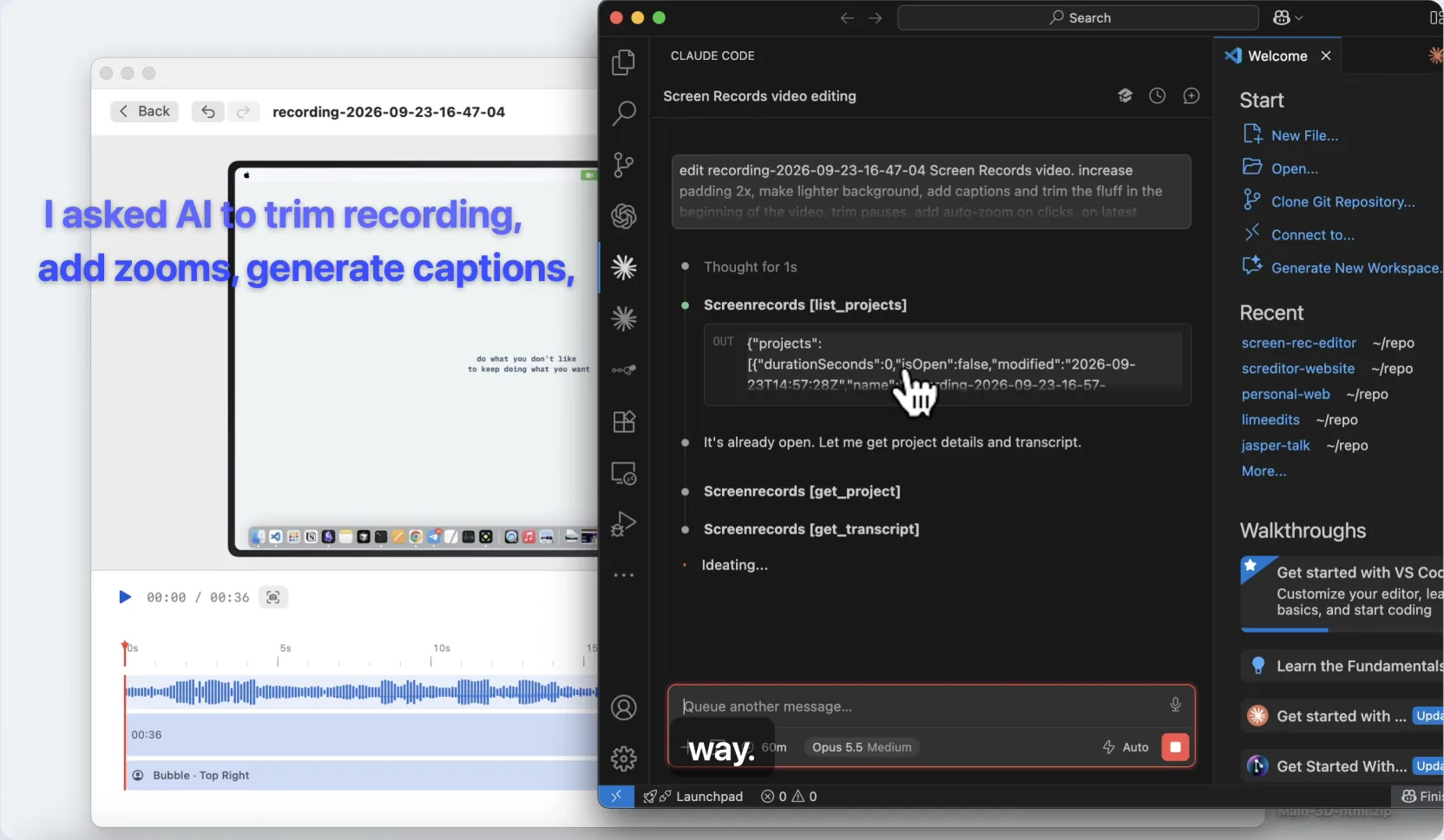
Where this saves the most time is many small labels tied to what you say. Ten step labels, each appearing on the right sentence, take a while to place by hand and one paragraph to ask for. It works well on top of the rest of an AI edit, too: the edit Claude Code did from one prompt cut the take, added captions and zooms, and labels would have been one more sentence.
What goes to the AI
The AI gives Screen Records the path of your image or video, and the app copies the file into the project on your Mac. The file itself is never uploaded. What the AI reads to decide where things go does reach that AI provider: the transcript, and any frames it pulls to look at the screen. If a recording shows a customer's data, place the overlays on that one by hand.
Setting it up

Open Settings, go to the AI tab and turn on Let AI tools edit projects. Pick your client, copy the command and paste it in Terminal. It runs on your own Claude or ChatGPT subscription, and Screen Records charges nothing extra for it. The AI / MCP page has the details for each client, and the zoom guide covers the other half of making a demo easy to follow.
Share this post
Keep reading
- GuideA teleprompter for screen recording on your MacPaste your script, place the panel under your camera, and it scrolls at your reading pace once you hit record. It never appears in the video.
- GuideHow to record a meeting on your Mac and keep itRecord the call window with system audio and your mic, ask everyone first, and transcribe it on your Mac. Plus what you may and may not record or share.
- Product updateYou could vibecode a screen recorder. Or record todayAn AI agent gets you a red record button in an afternoon. The rest took us two months. Where that time goes, and how to record something tonight instead.